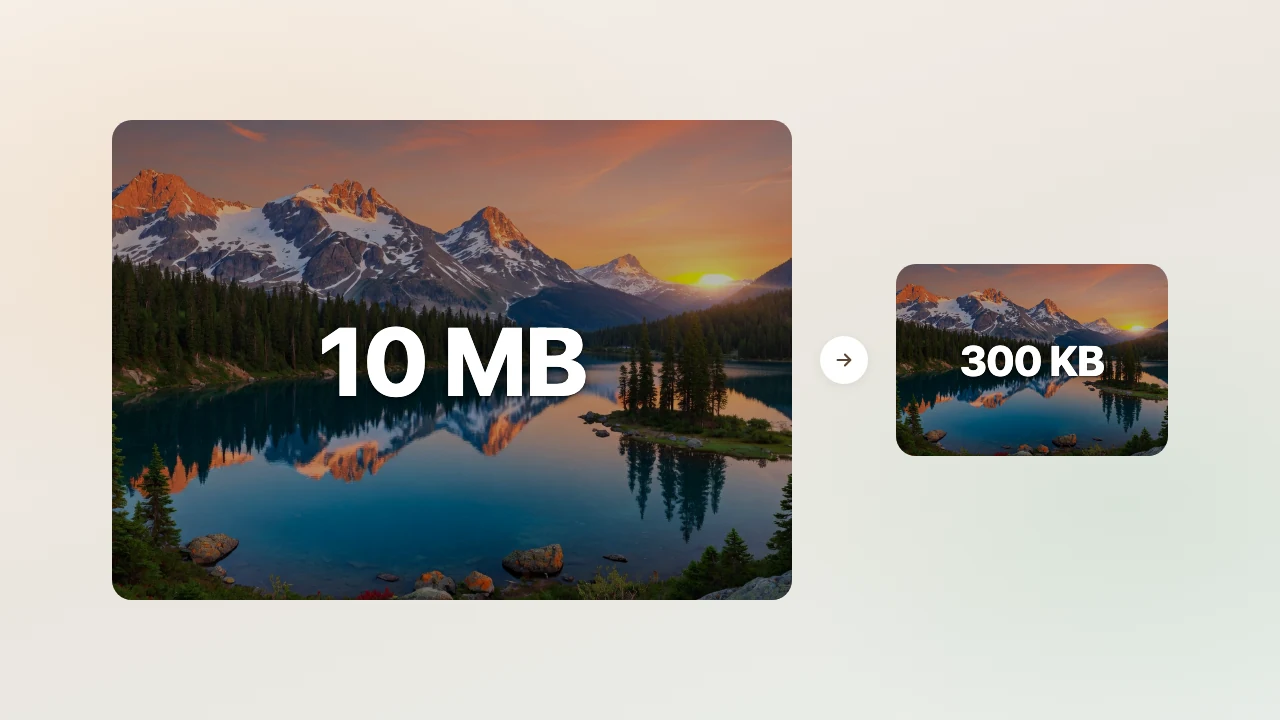
Why Is Figma Exporting as a Zip? (And Why the Folder Is Huge)
Why Figma export is a zip or multi-GB folder: Export all packs frames into a zip of PNGs. What 2x does, what to change, and how to shrink it.
· Updated

You hit Export all. PNG. 2x.
Figma finishes and you get a zip (or a folder that zips to something Slack refuses). Inside: one big PNG per frame. Ten minutes later you are staring at 1.8 GB.
Why is Figma exporting as a zip? Because multi-file export is a package of assets, not one optimized web image. Figma did what you asked: big PNGs, one per frame, no compression pass for email or upload limits.
That's the whole problem. The rest is how to export smaller next time and how to shrink what you already have.
PNG at 2x adds up fast
Figma exports a picture of your frame. PNG keeps every pixel. Transparency too.
Nothing wrong with that if you're editing. Bad if you're emailing 200 files to a client.
One phone screen at 2x might be 3 MB. Twelve landing sections? 40 MB before icons. Add dark mode variants and old exports you forgot to delete.
Small site, real numbers:
- 8 marketing screens, PNG 2x
- 24 UI pieces, PNG 2x
- 12 icons as PNG (should be SVG)
- 6 photos exported as PNG (should be JPG)
You're at ~70 MB on a good day. Keep shipping for a few weeks and 2 GB is normal.

Figma picks quality. You pick whether the folder can be sent.
2x is not "a little bigger"
At 1x, width and height are what you designed.
At 2x, both double. Pixel count goes up 4× (2 × 2).
At 3x, it's 9× the pixels of 1x.
File size follows. A 3x PNG is not "a bit" larger than 2x. It's another league.
One full-screen mobile frame (about 390 × 844 at 1x), exported as PNG:
| Scale | Rough size on disk |
|---|---|
| 1x | ~0.5 to 1.5 MB |
| 2x | ~2 to 6 MB |
| 3x | ~5 to 15 MB |
Now multiply by every screen, every state, every "just in case" export from last month.
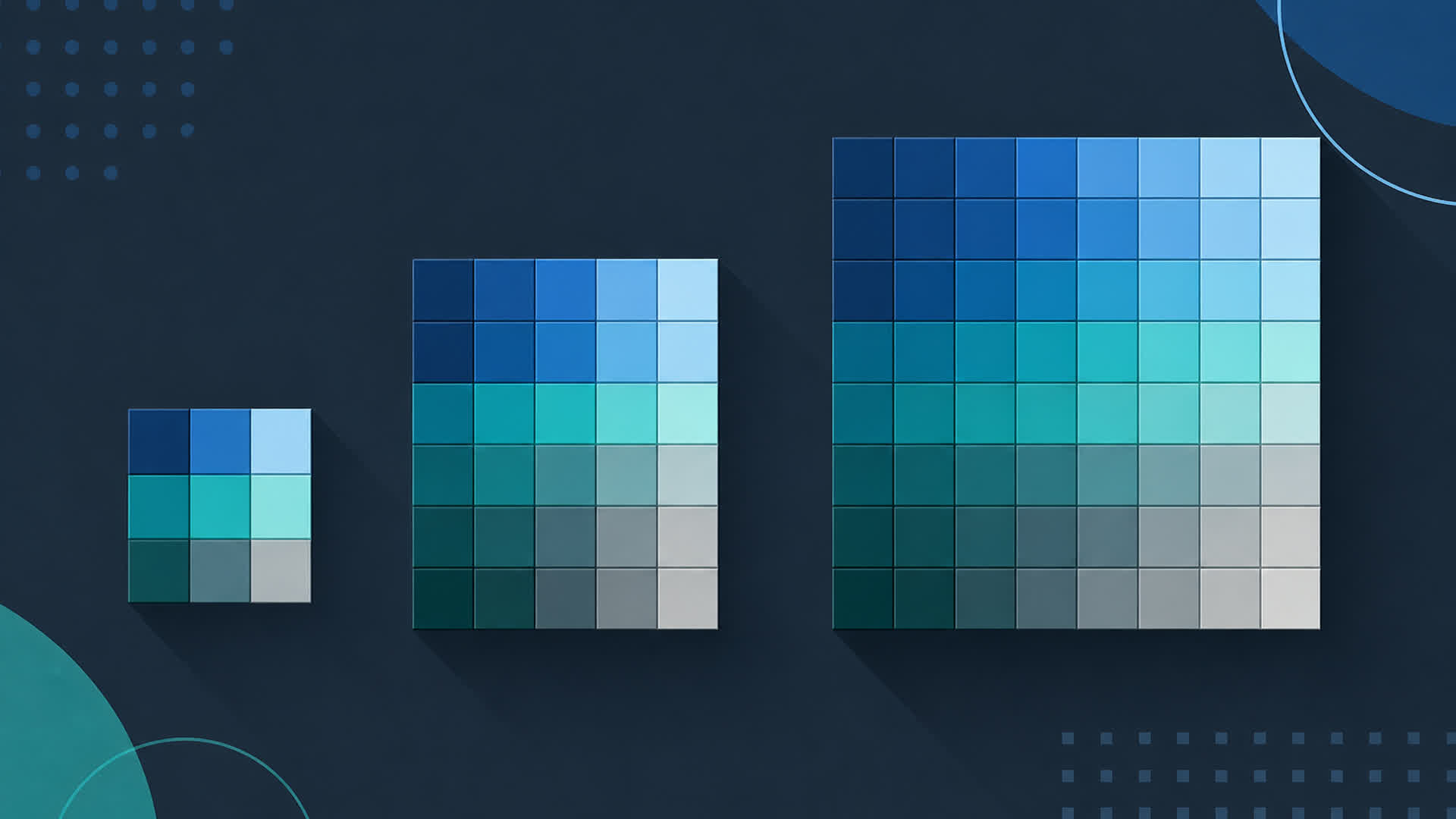
2x for retina when the asset is actually shown big on a phone. Skip 3x on everything.
Use the right format
PNG when you need transparency or flat UI that has to stay sharp.
JPG for photos and full-bleed images. Same photo as JPG is often 5 to 10× smaller than PNG.
SVG for icons and simple logos. One file instead of three PNG sizes.
WebP when you run the site and browsers are fine with it. Skip it for random email attachments.
What I see in bad export folders:
- Photos as PNG "because PNG is higher quality"
- Icons as 2x PNG instead of SVG
- 3x files for images that show at 400px on the site
- Light and dark PNG pairs when CSS could swap one SVG

PNG is not "best." It's "lossless." Use it when you need that.
Your file might be making it worse
Big frames. Export the slice you ship, not the whole playground artboard.
Heavy blur and shadow on the layer. That stuff bakes into the PNG. Simplify for export when you can.
Crap outside the crop still counts if it's inside the export box. Tighten the frame.
Ten button states × three breakpoints × 2x PNG. Export what goes live this week.
One preset for everything (PNG 2x on all layers) is how folders hit 2 GB.
Set export per component: SVG icons, JPG photos, PNG only where you need alpha.
Find the fat files first
Before you re-export the whole file, open the folder and sort by size.
On Mac: Finder → Size. On Windows: Details, sort by size.
You'll see a few files eating half the folder.
Watch for:
- Full-page PNGs over 5 MB
@3xon tiny UIcopy/v2duplicates- Charts and photos still PNG
Fix the worst 5 files. Sometimes that's enough to get under Slack's limit.
You don't always need new software. You need a better preset on the 14 MB hero.
Change these before you export
- Icons → SVG. PNG only if dev can't use SVG.
- Photos → JPG at 1x or 1.5x. Use 2x on big retina heroes if you must.
- UI with transparency → PNG at the lowest scale that still looks sharp. Try 1.5x before 3x.
- Name files
@2xso nobody guesses. - Export real screens, not every exploratory board.
- If the client has last week's zip, only export what changed.
How wide will this show on the site? In CSS pixels.
If it's 400px wide on the page, you don't need a 2400px-wide file. Export around 1.5× to 2× the display width for retina.
Quick picks:
| Where it goes | Export |
|---|---|
| App icon (24px on screen) | SVG, or tiny PNG |
| Card image (~360px wide) | JPG 1.5x, or PNG 2x if it's UI |
| Full-width hero | JPG 1.5x to 2x; PNG only if you need transparency |
| PDF / print | Higher scale is fine |
Dev says "it's blurry"? Check display size first. A 400px slot with a 400px 1x file looks soft on retina. A 400px slot with a 3x monster file looks sharp and wastes space.
Where to set this in Figma
Select a frame or layer. Look at the bottom-right Export section. Hit + to add a setting.
You can stack multiple exports on one layer (SVG + PNG 2x). That's how you stop using one global preset for the whole file.
For a batch: mark layers with export settings, then Export from the file menu or right-click the selection.
Export for lets you target iOS, Android, or web. Don't blindly take the highest scale it suggests. Match your real site.
Limits you'll hit in the real world
These change, but the pain is the same:
- Slack free uploads are small. A 1 GB zip fails.
- Email often chokes around 25 MB total.
- Git without LFS gets slow when
assets/is hundreds of MB. - CMS uploads sometimes cap a single image at 5 to 10 MB.
You feel it first in Slack or email. The fix is still smaller files, not a bigger upload button.
Compress after export
Even good exports are often bigger than they need to be on disk. PNGs from design tools can shrink 30 to 70% with a second pass. You usually can't see the difference.
Keep the raw folder. Name it exports_raw or add the date.
Compress a copy. Send exports_web or exports_compressed to the client.
Don't upload 500 MB to a random website for NDA work. Do it locally.
Compresso works here: drop the folder, folder mode keeps your subfolders, output sits next to the original as _compressed. Files stay on your machine.
80 to 200 images? 1.5 GB down to a few hundred MB is common. Depends on what's in the folder, but that's the usual range.
After compression:
- UI PNGs: often 20 to 50% smaller
- JPG: smaller wins if they were already JPG; if they're PNG photos, re-export as JPG in Figma first
- SVG: use an SVG optimizer, not a photo compressor
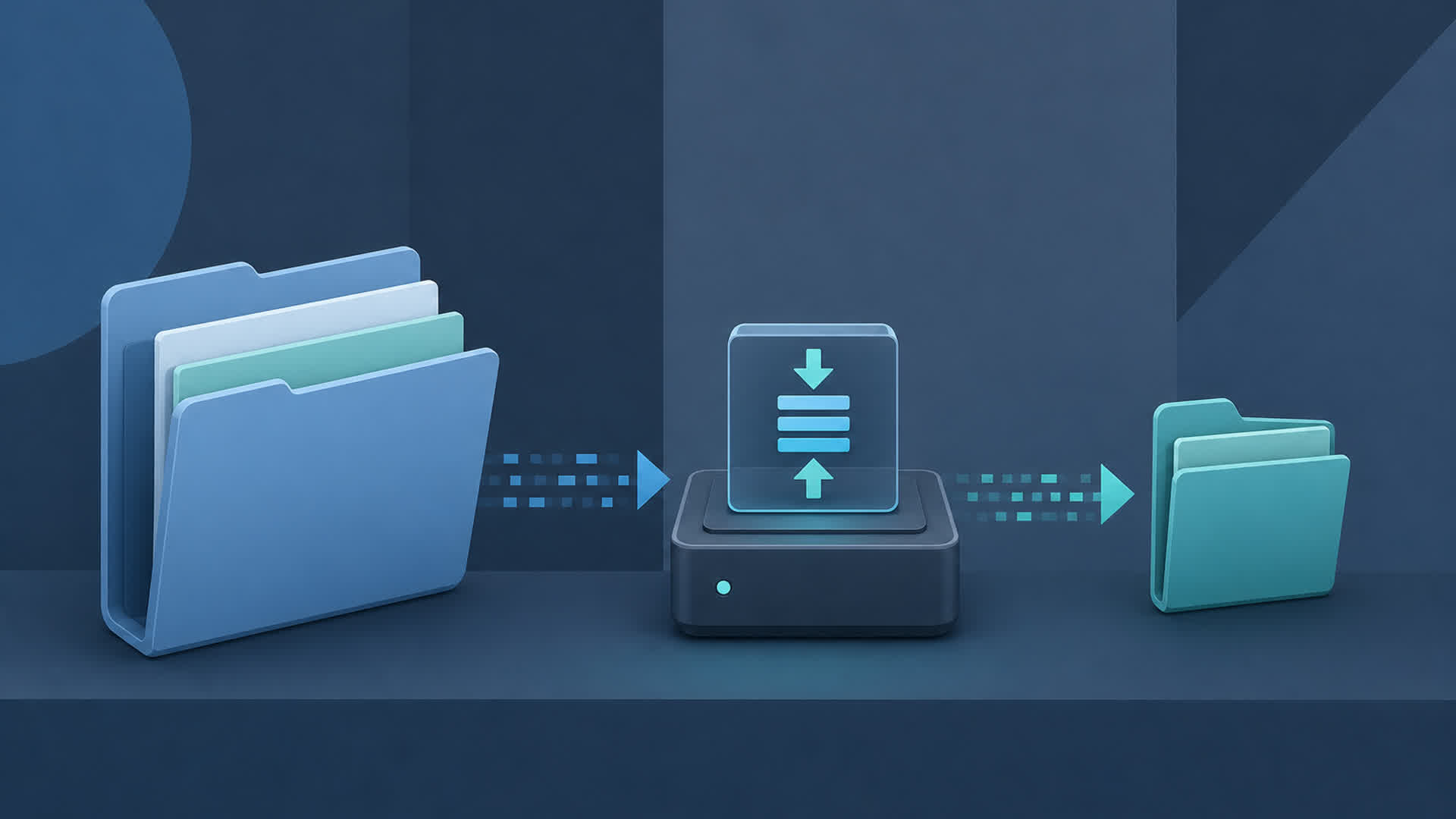
Raw = archive. Compressed = Slack, email, git.
Plugins
Plugins can batch-rename or apply presets. They don't change the math.
Good for: same preset on a component set, @2x suffixes, only marked layers.
Skip "AI optimize everything" if you can't see the settings.
Plugins save clicks. You still pick format and scale.
If you already shipped the huge folder
Don't panic.
- Sort by size. Fix the top 10 in Figma and re-export only those.
- Run a local compress on what's left for this week's send.
- Tell the dev which folder is "web" and which is "master" so nobody puts 3x PNGs in production.
Next project, fix presets on day one. Cheaper than fighting a 2 GB zip every Friday.
Do this every time
In your Figma template:
- SVG / JPG / PNG presets on components
- A note: "icons SVG, photos JPG, UI PNG 2x max"
- On disk:
20260601_client_raw→ compress →20260601_client_web
Zip still huge? It's almost always scale, wrong format, or no compression pass.
Stop exporting the whole file as 2x PNG. Fix settings. Compress a copy. Then send.