What Is Image Compression? Lossless vs Lossy Explained
What image compression is, how lossless and lossy differ, and when to use JPEG, PNG, or WebP without wrecking quality.
· Updated
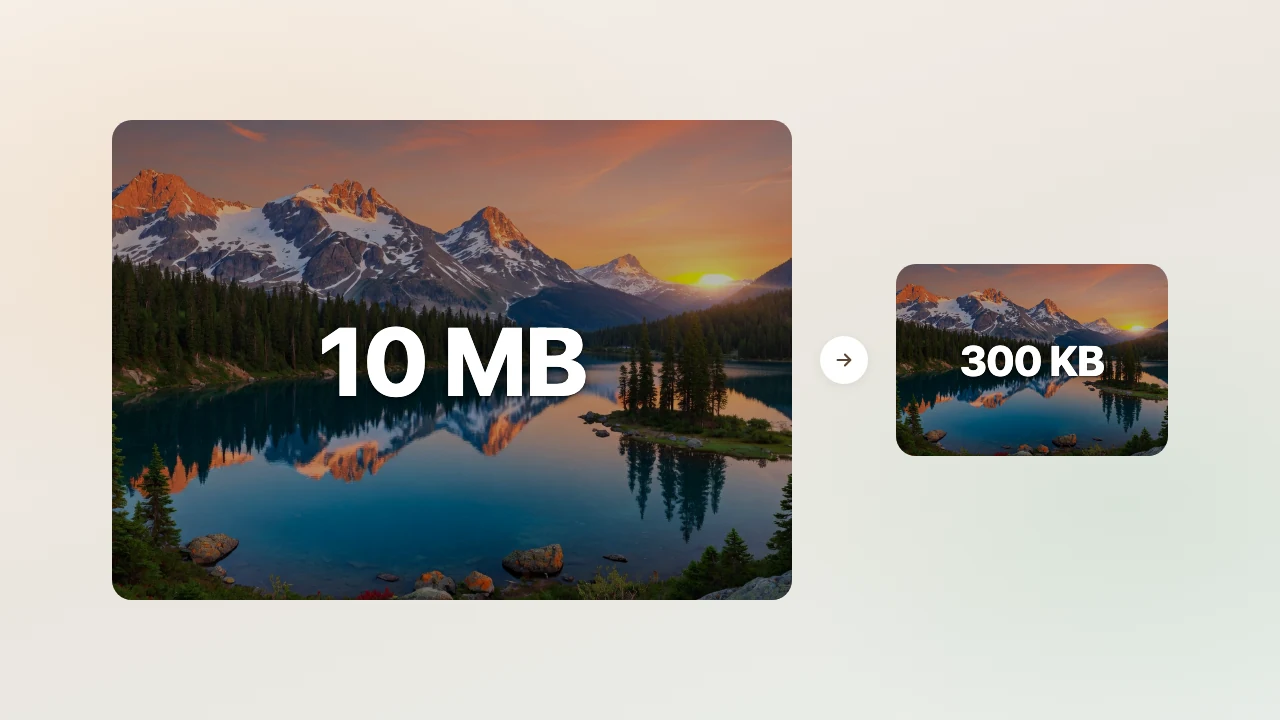
A raw phone photo can sit at several megabytes. The same shot on a website is often under 500 KB.
Image compression is how that gap closes. Software rewrites the file so it uses fewer bytes while still looking good enough for the job.
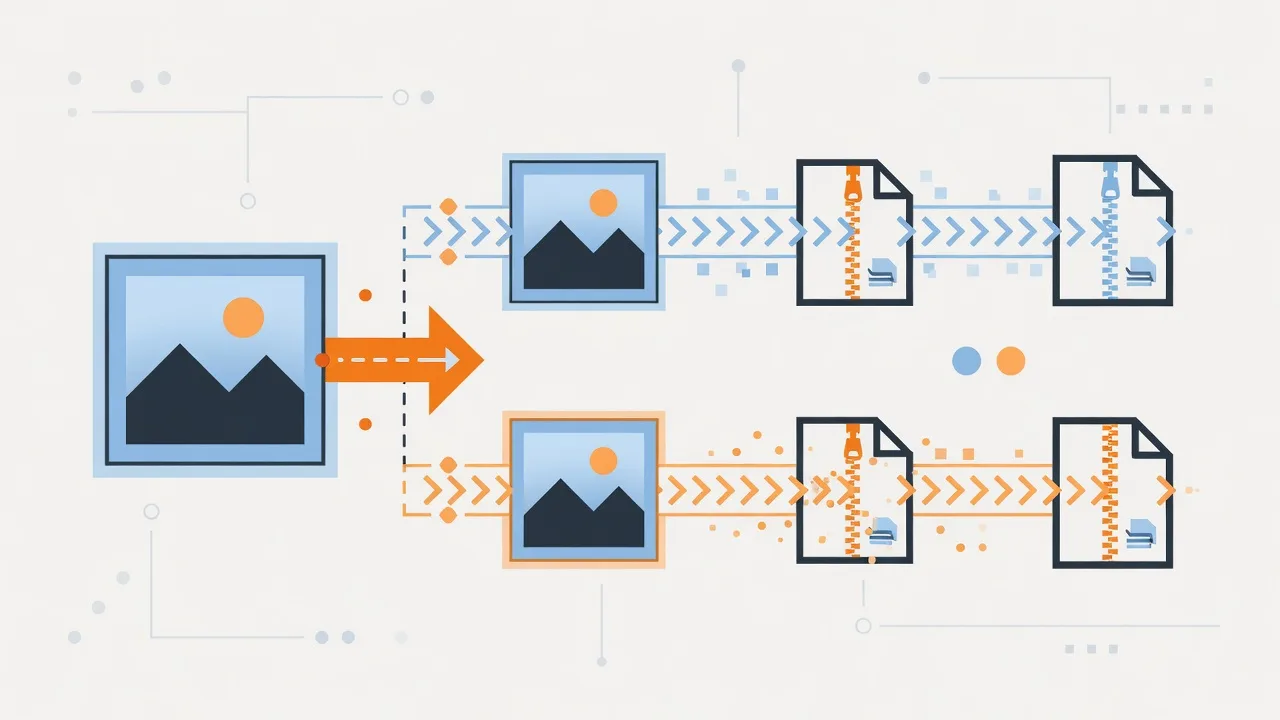
There are two main modes: lossless (exact pixels back) and lossy (smaller files, some detail gone for good). The rest of this post explains both, then JPEG, PNG, and WebP in plain terms.
What is image compression?
Image compression is any process that stores the same picture with less data.
A digital image is a grid of pixels. Each pixel stores color values. Without compression, a 4K frame can approach 25 MB of raw RGB. Formats like JPEG and PNG exist so you do not ship that raw grid around.
Compression does not invent new detail. If a photo is already too small for a big print, compressing it will not fix that. Check dimensions first with an image resolution checker, then shrink file size.
What is lossless image compression?
Lossless image compression reduces size without changing a single final pixel after decode.
You compress, then open again, and the grid matches the original. That matters for:
- Screenshots and UI with sharp text
- Logos and graphics with flat colors
- Medical or archival images where every pixel must stay
PNG is the common lossless web format. Lossless WebP can do a similar job with smaller files in many cases.
Lossless methods look for patterns. One simple idea is run-length encoding: store “200 white pixels” instead of 200 separate white values. Real codecs use smarter tables and filters, but the idea is the same: rewrite, do not discard.
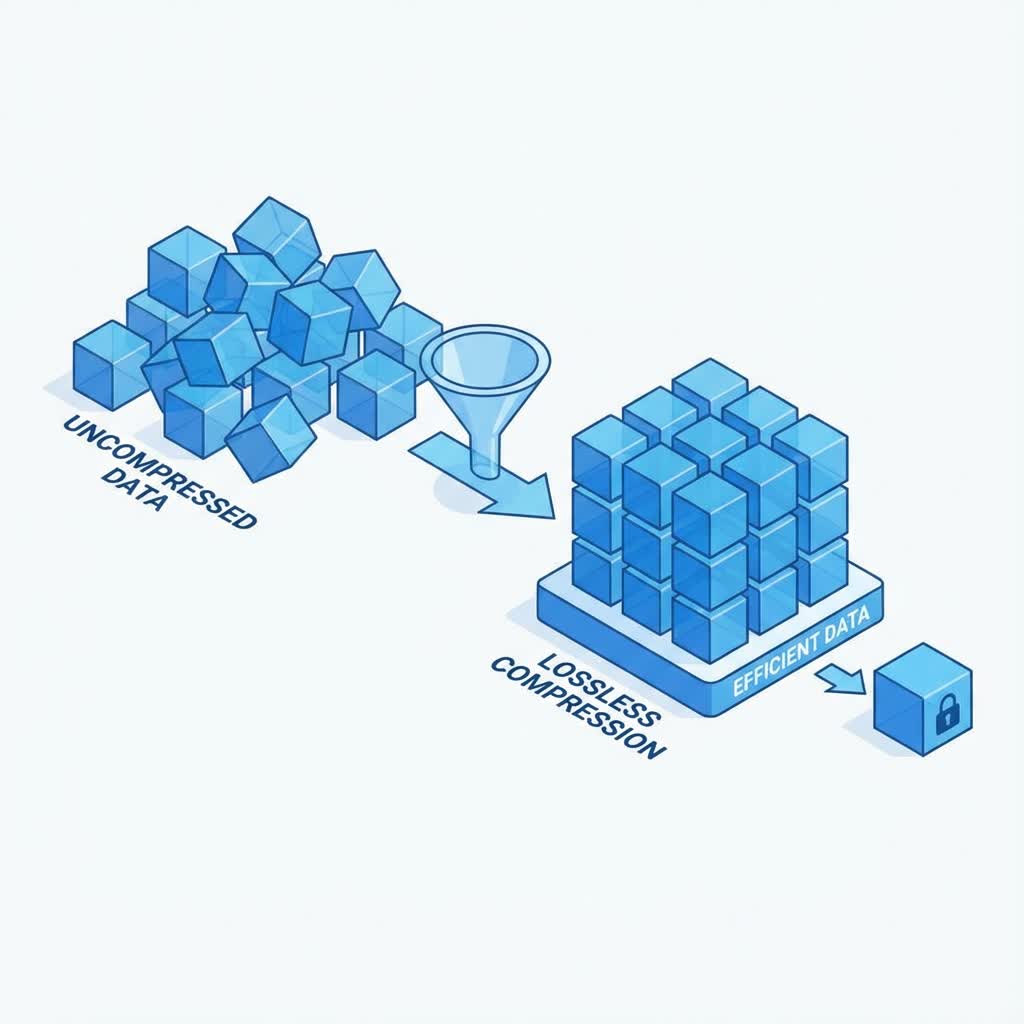
Tradeoff: lossless files stay larger than a well-tuned JPEG of the same photo. Use lossless when exact edges matter more than the smallest possible size.
What is lossy image compression?
Lossy image compression throws away information on purpose to get much smaller files.
JPEG and lossy WebP do this. They keep brightness detail the eye notices and soften color detail the eye often misses. That is why a holiday photo can drop from 8 MB to under 1 MB and still look fine on a phone screen.
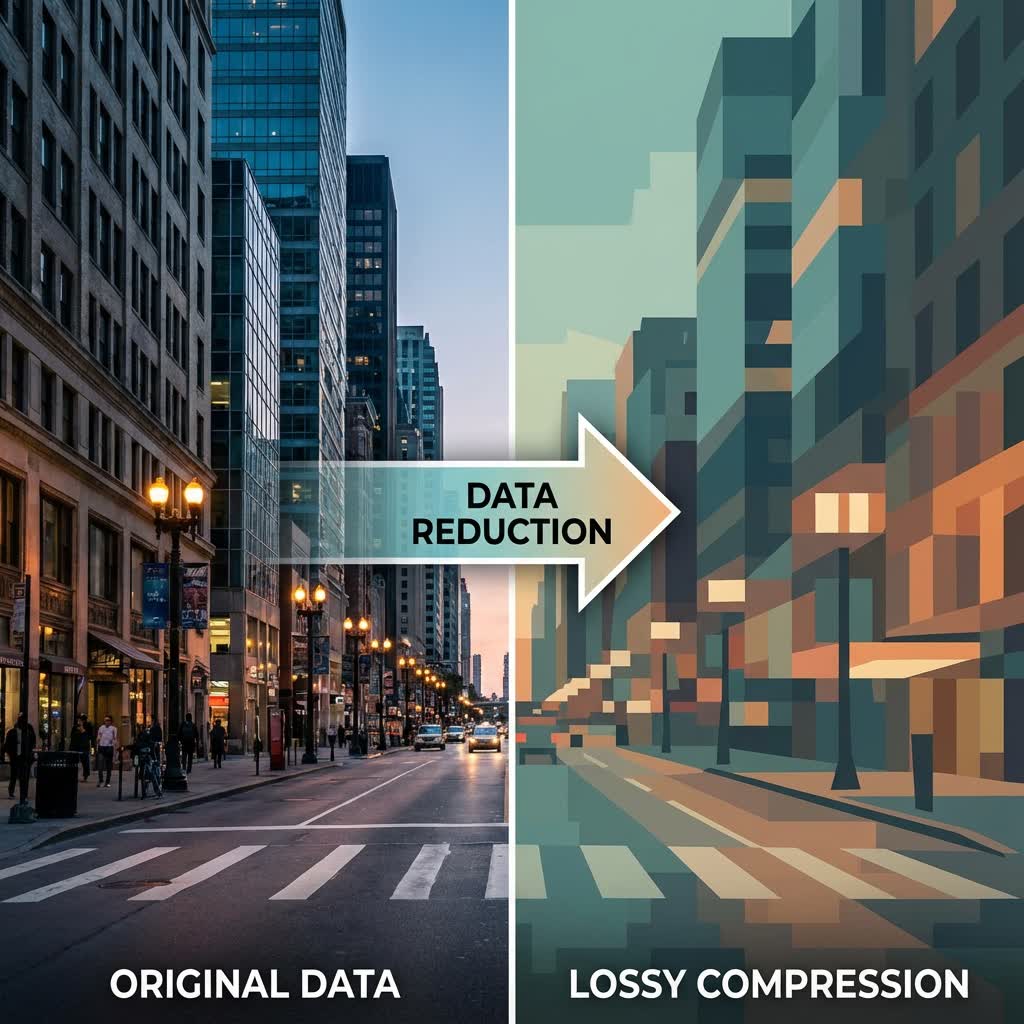
Tradeoff: each hard re-export at low quality can add blur or blocks. Export once from a master when you can. For a one-off online pass, try Compress JPG and check the result side by side.
How does JPEG compression work (short version)?
JPEG is still the default for photos on many sites. In rough order:
- Convert colors so brightness and color sit in separate channels.
- Split the image into small blocks and turn each block into frequency data.
- Drop high-frequency detail the eye is weak at seeing (this is the loss).
- Pack the leftover numbers efficiently.
You do not need the math to use it. You need a quality setting that looks good on a real screen, then stop re-saving the same JPEG over and over.
WebP and AVIF in one minute
- WebP: often smaller than JPEG or PNG at similar quality. Supports lossy, lossless, and transparency.
- AVIF: strong compression for modern browsers. Encoding is slower. Support is better than a few years ago, but check your audience.
For a longer format compare, see modern image formats.
When to use which format
- Photos for web or email: lossy JPEG or WebP.
- Screenshots and UI: PNG or lossless WebP.
- Icons and simple logos: SVG when you can.
- Whole folders of photos offline: desktop bulk tools beat one-file browser tabs. See the bulk image compressor page or best free image compressors.
Quick answer recap
| Goal | Mode | Typical format |
|---|---|---|
| Exact pixels | Lossless | PNG, lossless WebP |
| Small photo files | Lossy | JPEG, lossy WebP |
| Transparency + sharp UI | Lossless | PNG |
| Modern web delivery | Often lossy WebP / AVIF | with fallbacks if needed |
Image compression is a trade: bytes versus fidelity. Lossless keeps every pixel. Lossy buys size by dropping hard-to-see detail. Pick the mode for the job, check the result once, and keep a master copy of important originals.
If you want that workflow offline on Mac or Windows for whole folders, download Compresso and compare file sizes on your own photos.
Frequently asked questions
- What is image compression?
- Image compression makes a photo or graphic file smaller by removing or rewriting data so it takes fewer bytes. You keep a usable picture. You free storage and speed up loads.
- What is lossless image compression?
- Lossless compression shrinks a file without throwing away pixel information. When you open it again, you get the exact same pixels. PNG and lossless WebP work this way. Files shrink less than with lossy formats.
- What is lossy image compression?
- Lossy compression permanently removes detail the eye is less likely to notice. JPEG and lossy WebP do this. You get much smaller files. If you re-save many times at low quality, soft edges and blockiness show up.
- How does image compression work in simple terms?
- The encoder finds patterns and redundancy. Lossless methods rewrite the data more efficiently. Lossy methods also drop fine color and detail the eye often misses, then pack what remains.
- Should I use lossless or lossy for photos?
- Use lossy (JPEG or WebP) for most photos you share or put on a site. Use lossless (PNG or lossless WebP) for screenshots, UI, and anything with hard edges or transparency that must stay exact.