Batch Processing 101: Compress Entire Folders Without Losing Your Workflow
A practical guide to batch-compressing images and videos with Compresso, including file limits, folder mode, and the fastest way to stay organized.
· Updated
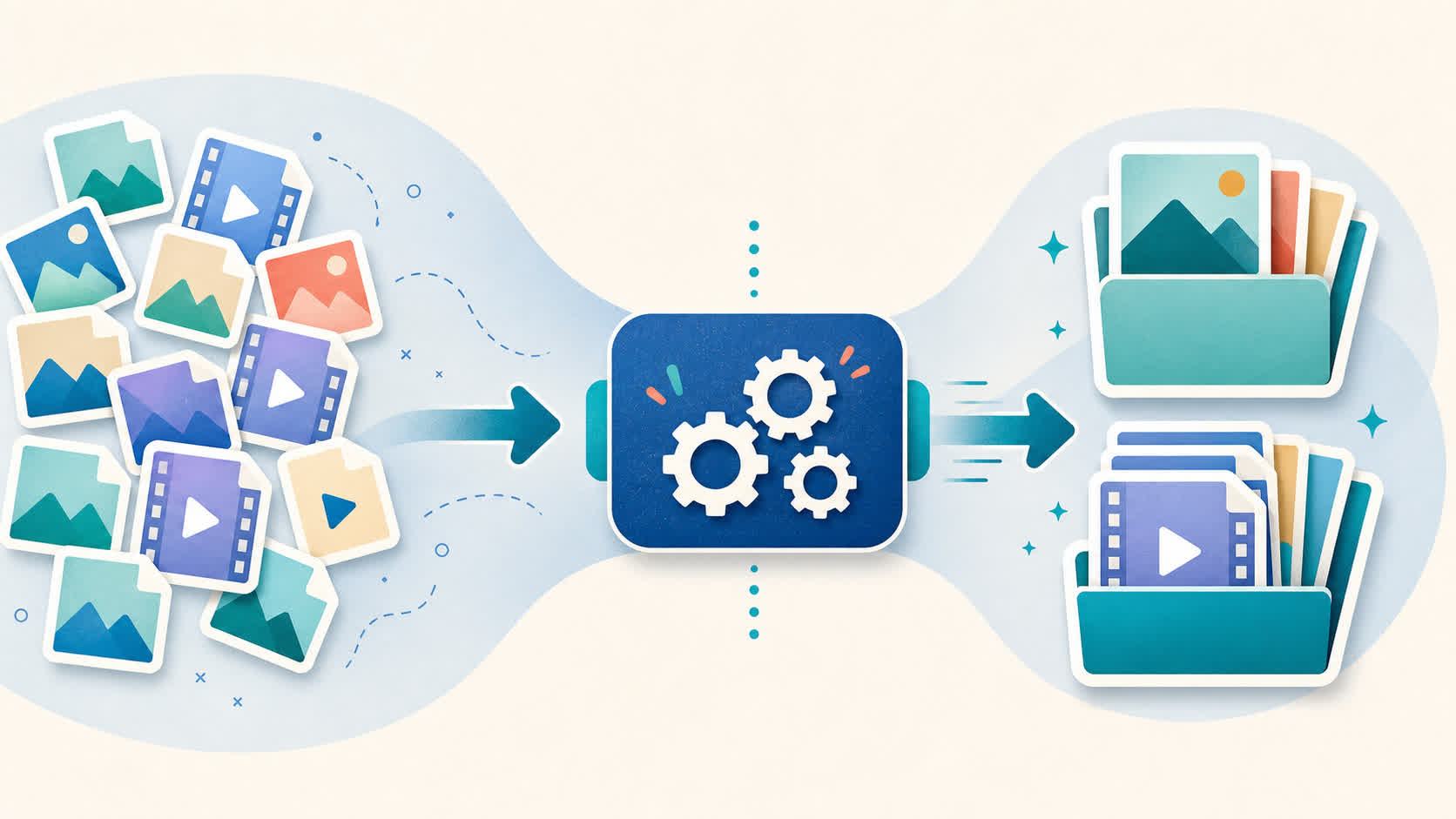
Most people do not waste time because compression is hard. They waste time because they are doing it one file at a time. That is what makes the whole thing feel slow and annoying.
You finish an edit, export a bunch of images and videos, and then start dragging them in one by one. Compress. Download. Rename. Move to the right folder. Do it again. After a while, it stops feeling like a small task and starts feeling like a chore.
That is where batch processing helps. It is not just about making files smaller. It is about making the whole workflow less messy and saving you from repeating the same steps over and over.
Why one-by-one compression quietly kills momentum
Compressing files one by one does not seem like a big deal at first. Each step only takes a few seconds, so it is easy to ignore how much time it is actually eating.
But the bigger problem is not just time. It is the way it breaks your flow. You stop what you are doing, handle one asset, then stop again for the next one. That constant switching gets tiring fast.
It also makes mistakes more likely:
- One export gets compressed harder than the rest.
- One file ends up in the wrong folder.
- One upload uses the original by accident.
- One renamed duplicate turns into
final-final-v2-actual.mp4.
That is the part people usually miss. Doing it one by one does not make you more careful. It usually just makes the work slower and more scattered.
If you deal with client work, social content, product images, course files, or anything else in batches, the real win is being able to process everything together and move on with your day.
Before you compress a full folder, run one sample through the free image resolution checker so you know pixel size before you lock in quality settings.
Compresso gives you two different batch workflows
Not every batch job is the same. Sometimes you only want to compress a few final exports. Other times, you want to take a full folder and clean up the whole thing in one go.
That is why Compresso splits this into two simple workflows: files mode and folder mode. Once you understand the difference, it becomes much easier to pick the right one.
Files mode is for selective batches
Files mode is the better choice when you already know exactly which items you want to compress. You can drag them in directly or use the file picker and work with just that selected set.
On the free plan, files mode supports up to 10 files per batch. Personal goes up to 200 files per batch. Studio has no file cap.
This is also the mode that gives you more control. You can adjust:
qualitysizespeed
That is useful when you are preparing files for a website, social media, email, or a client handoff and you want to decide how aggressive the compression should be.
By default, files mode saves into Downloads/Compresso, though you can change that if you want. It also uses a flat output folder, which means it does not try to keep your original folder structure.
If two files have the same name, Compresso adds a number instead of overwriting anything. That is a small thing, but it saves you from stupid problems later.
Folder mode is for full-project cleanup
Folder mode is for the bigger jobs. If you want to compress an entire project folder instead of picking files one at a time, this is the one to use.
On the free plan, folder mode supports up to 1 GB per folder batch. Personal goes up to 50 GB per folder batch. Studio has no folder size cap.
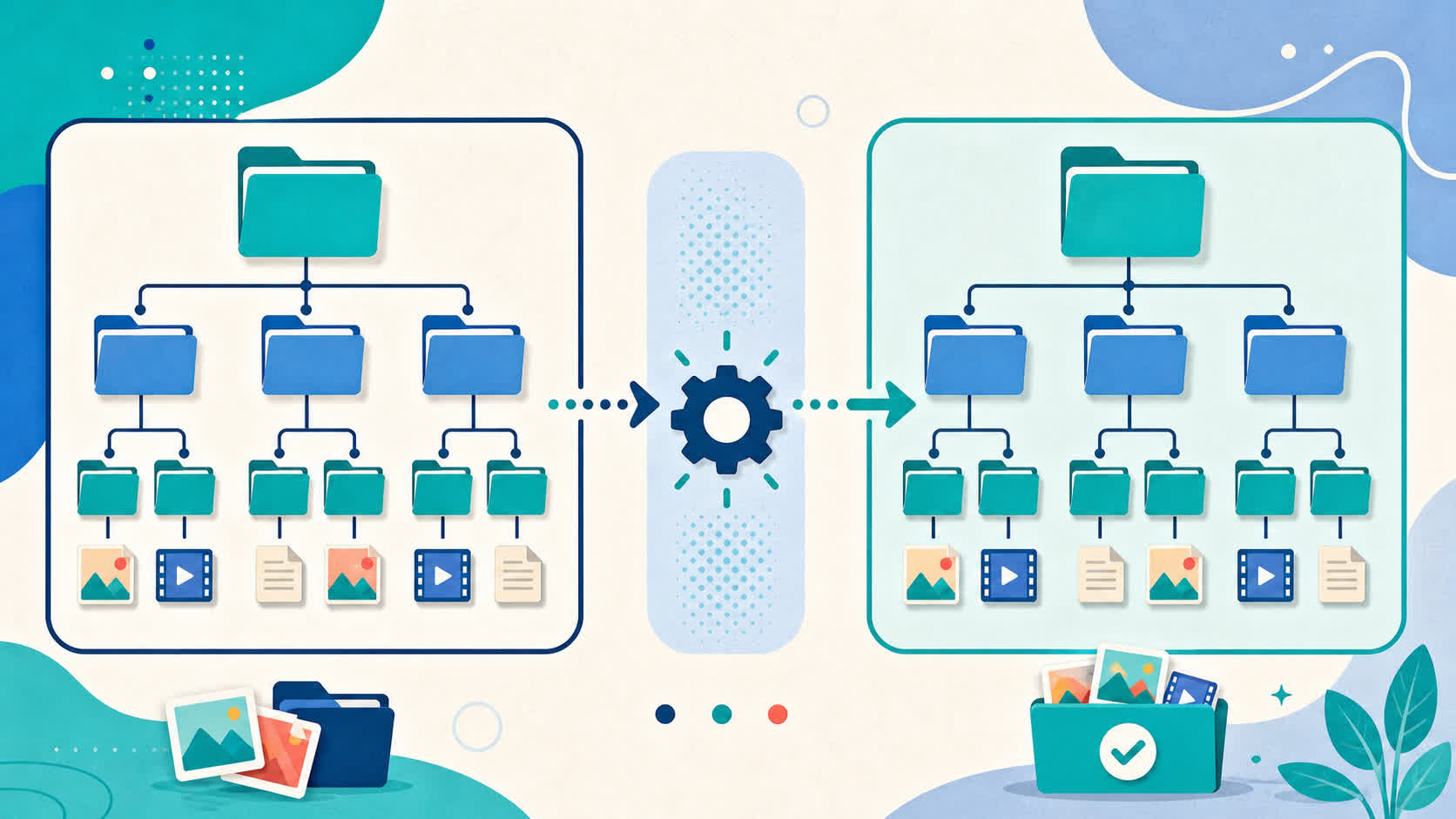
Compresso scans nested subfolders, creates a new output folder next to the original, and keeps the same relative structure while processing. So if your project already has a clean setup, it stays clean.
For example, a folder like:
Project/Photos/HeroProject/Photos/ThumbnailsProject/Videos/Reels
can turn into a matching compressed version instead of a random pile of files dumped into one place.
The output folder is created beside the original using <folder>_compressed. If that folder name already exists, Compresso adds a number and creates a new one instead of replacing an older run.
That sounds minor, but it makes cleanup much easier. You always know what came from where, and you are much less likely to lose track of a previous export.
The tradeoff: folder mode is faster to run, not finer to tune
This is the part worth knowing before you use it. Folder mode does not give you the same manual controls as files mode.
It uses Compresso’s default batch settings:
greatqualityreducedsizefastspeed
That makes folder mode better for speed and organization, not fine tuning. If you need to carefully adjust a few important files, files mode is the better option.
If you just want to shrink a full project folder and keep everything in order, folder mode is the easier path. The main thing is not to expect both modes to do the exact same job.
The real payoff is consistency across the whole set
Most people think batch processing is only about saving time. That matters, but consistency is just as important.
When you handle files one by one, it is easy for the output to become uneven. One image gets compressed too much, one video is still too large, and one file ends up in a different format from the rest.
Batch processing helps keep things more predictable. Compresso also standardizes outputs in a simple way:
- Images are written as
.jpg - Videos are written as
.mp4
That is useful when you are uploading to a CMS, sending files to a client, or working in a shared team folder. Clean, predictable output is easier to review, upload, and trust.

A simple batch workflow that saves time without creating chaos
You do not need a complicated setup for this. You just need a workflow that feels easy enough to repeat every time.
Here is a simple version that works well:
- Use files mode for selected finals when you want control over quality, size, and speed.
- Use folder mode for full project directories when preserving structure matters more than manual tuning.
- Keep the original folder untouched and review the generated compressed output separately.
- Only replace originals after you have checked the final upload or delivery.
This keeps things simple and gives you a safer review step before replacing anything important. It also makes it easier to undo mistakes if you catch something later.
Three mistakes worth avoiding
1. Throwing everything into one giant flat export
If the project already has a real folder structure, use folder mode. Keeping that structure is better than sorting everything by hand later.
2. Using folder mode when only five assets matter
If you only need a few important assets, folder mode is probably too much. Use files mode instead and adjust the settings for that smaller set.
3. Treating compression like the final step
Compression works better when it is part of your delivery routine, not a rushed cleanup step at the very end. Once it becomes part of the process, the whole job feels more under control.
Bottom line
Batch processing is not the kind of feature people get excited about at first. But once you start using it, it quickly becomes one of the most useful parts of the workflow.
If you mainly need to shrink a large photo set offline, start here: bulk image compressor for Mac and Windows.
It cuts down repeated steps, keeps projects cleaner, and helps you get through large sets of files without turning the last part of the job into busy work.
If there is one thing to remember, it is this: batch processing is not only about smaller files. It is about saving time and making your workflow easier to manage.
If you are still compressing exports one by one, that is probably the first thing worth fixing.
Got a huge wedding photo dump to shrink for Drive or family sharing? See compress wedding photos in bulk.